How it works
The shop is a part of your WhatsApp number that sells. A customer writes “shop”, taps your shop link, or simply asks “do you have sunscreen?”. From there they:
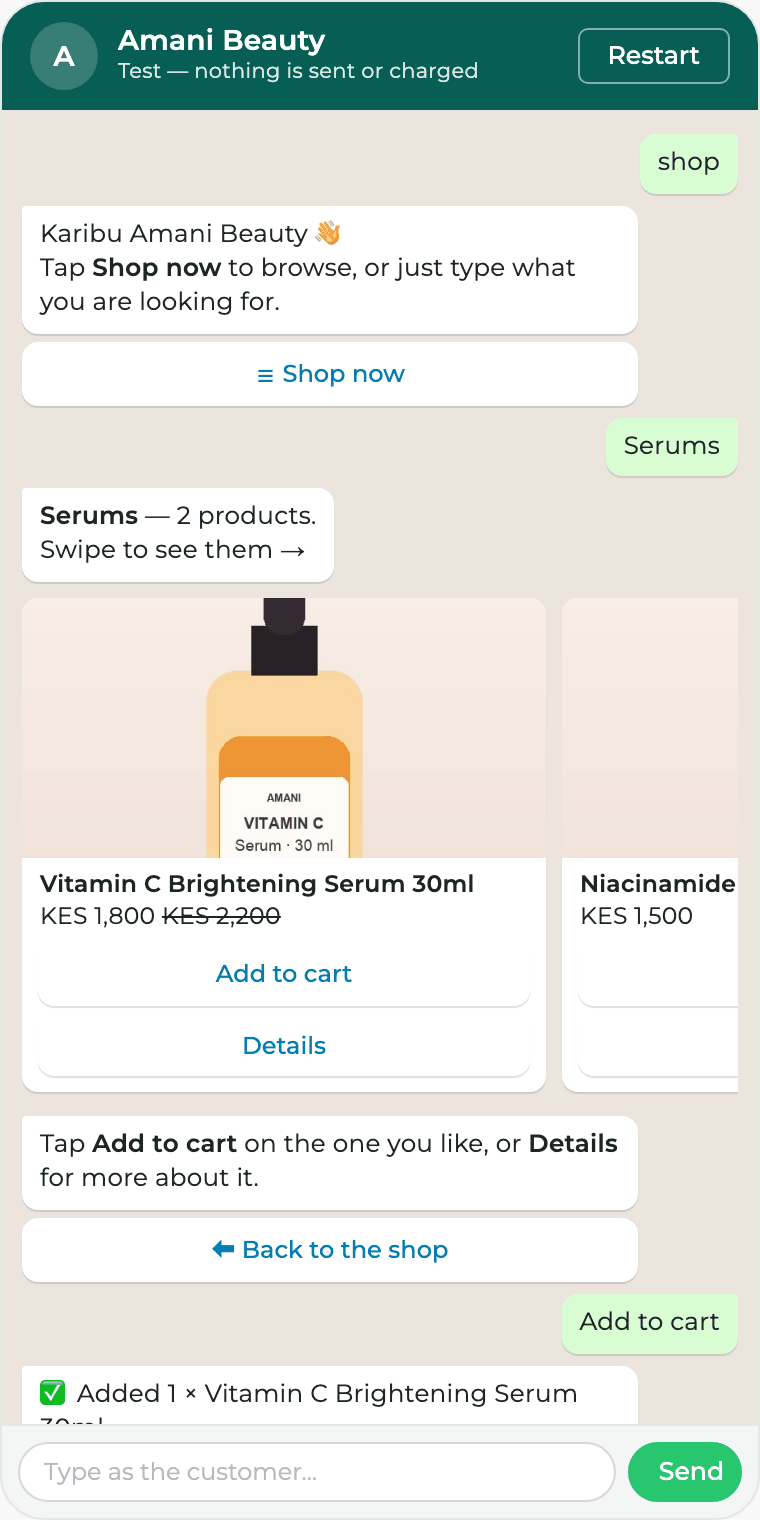
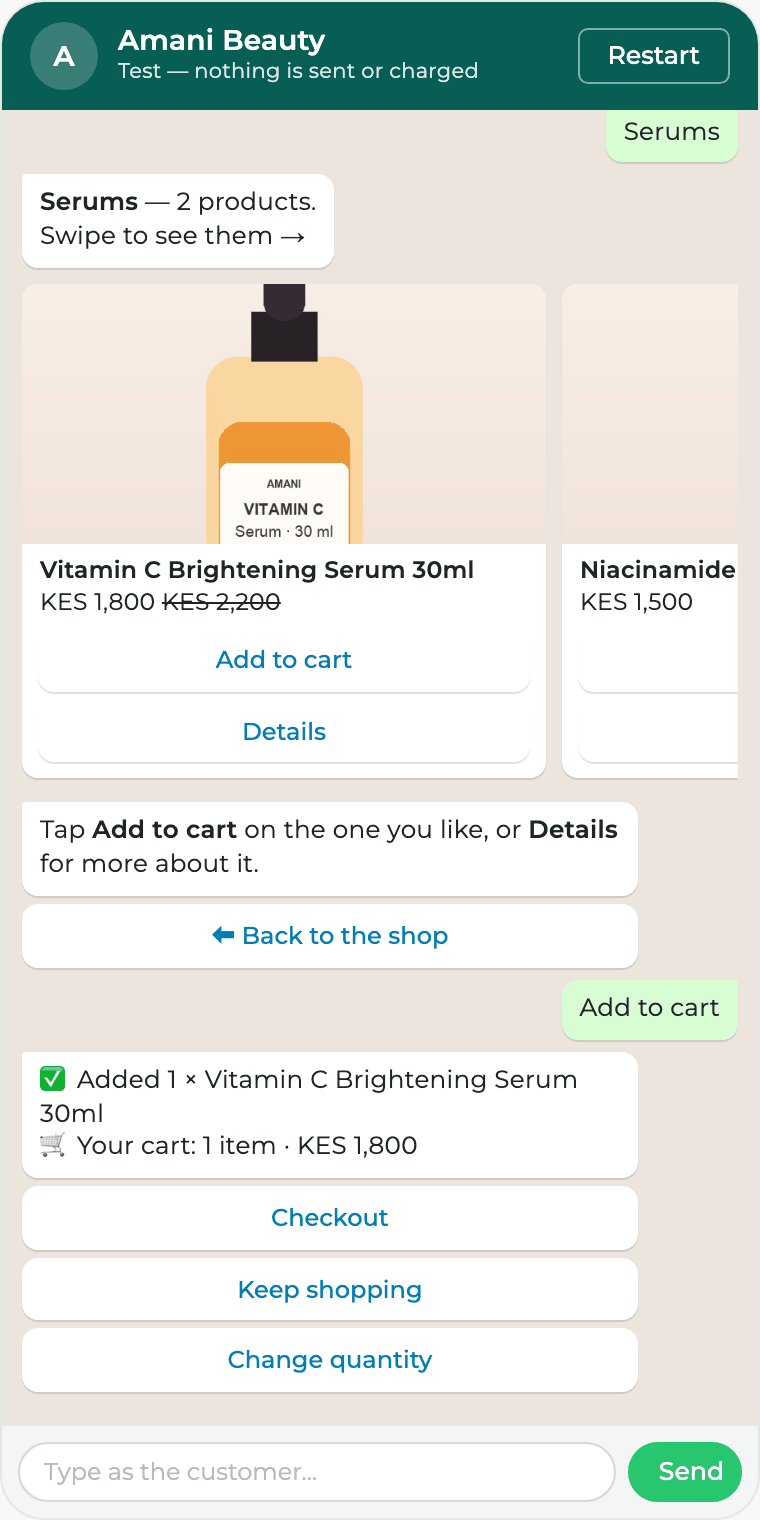
- browse your categories or search, and see your products as cards with a photo, price and Add to cart;
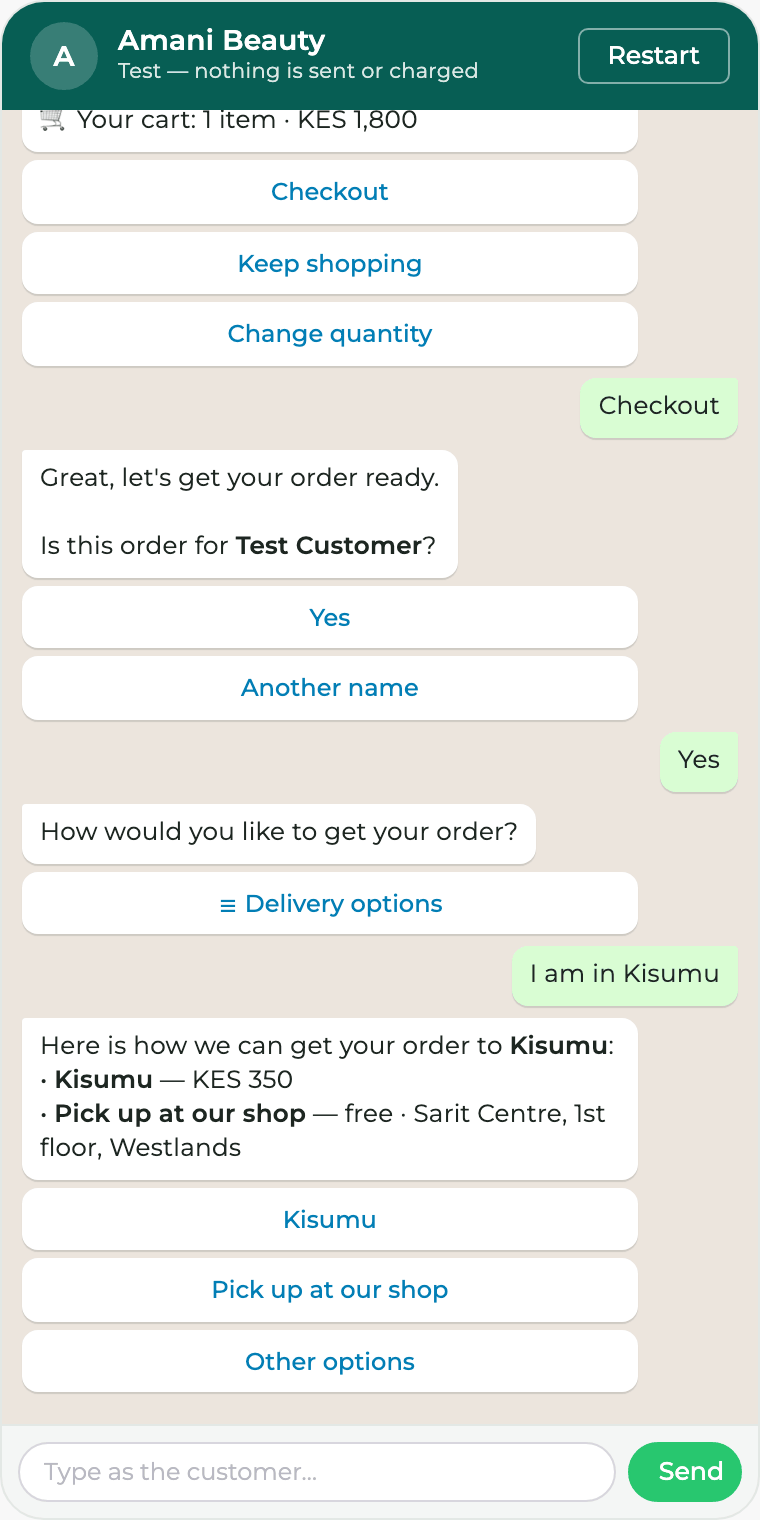
- check out: confirm their name, choose how to get the order — or just tell you their town — and share a location pin;
- pay with a secure link (M-Pesa or card) or choose cash on delivery;
- get the confirmation on WhatsApp, while the order appears in your store with everything your team needs to fulfil it.
You set it up once in WhatsApp → Shop. The page has eight steps on the left and, on the right, a Test phone where you try the shop as a customer would. Nothing in the test is sent or charged.
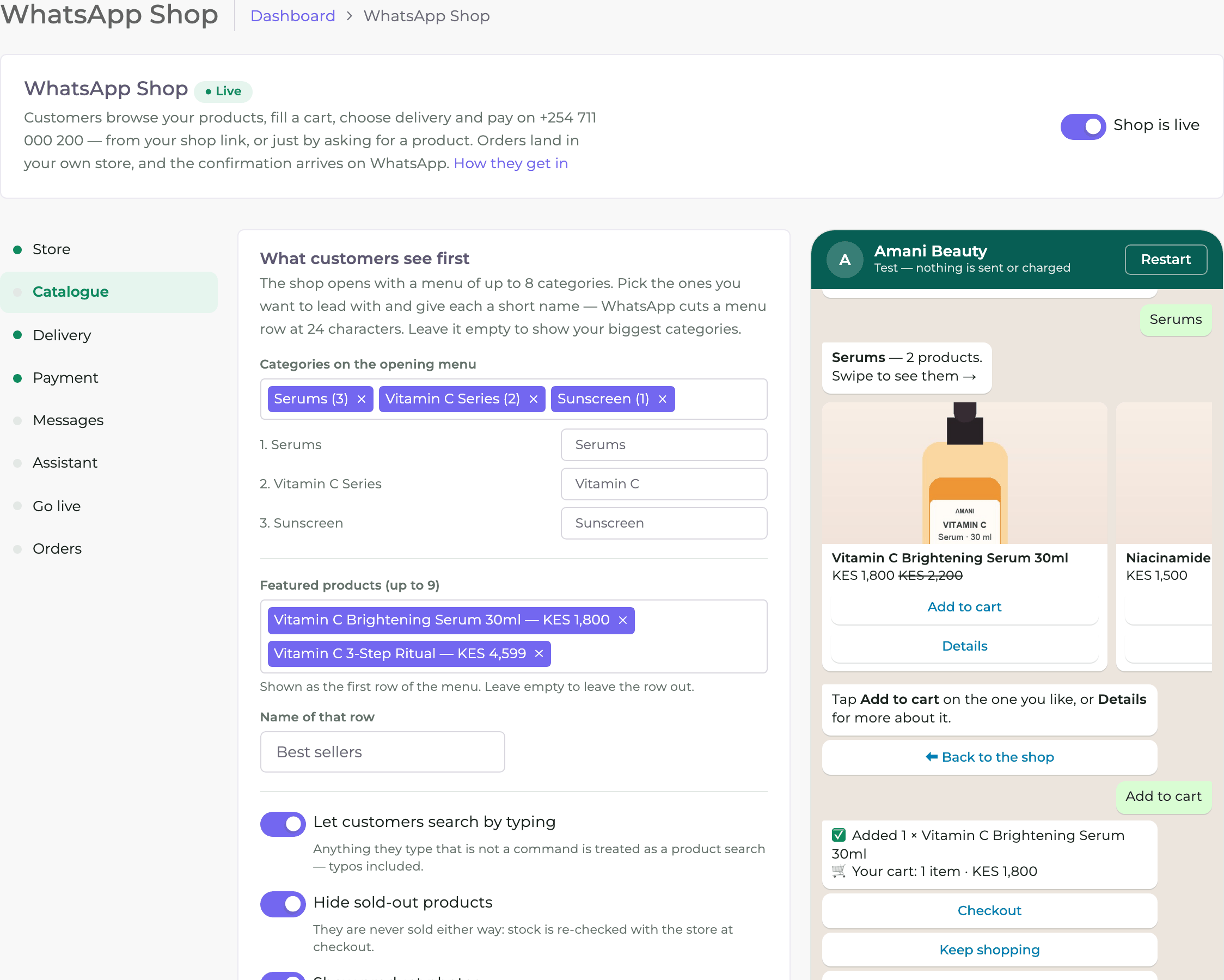
The shop does not replace your conversation flows or the Team Inbox. It answers shop messages; everything else goes on to your flow or to your team, as before. A flow can also send customers into the shop with its Open the shop step.
Before you begin
- Your WhatsApp number is connected to Sozuri and receives replies — see Connect your number and Receive replies.
- A WooCommerce store and someone who can sign in to its WordPress admin. (Shopify, ERPNext and Odoo are coming next.)
- A way to be paid: a Paystack account (its secret key), or cash on delivery — or both.
- Optional: AI tokens on your account, if you want the shopping assistant to answer in plain words.
The page shows a dot beside each step: green when it is done. The shop can go live once the store, delivery and payment are set up.
Step 1Connect your store
WhatsApp → Shop → StoreChoose WooCommerce and press Connect with WooCommerce
Your store's WordPress admin opens and asks you to approve Sozuri. Approve it, and you come straight back here. If your host blocks that, open Or paste a key instead: in WordPress go to WooCommerce → Settings → Advanced → REST API → Add key, choose Read/Write, and paste the key and secret.
Let it copy your products
Your products and categories are copied in the background, and refreshed every 3 hours. Copy products now refreshes them at once, for example after you add a new range.
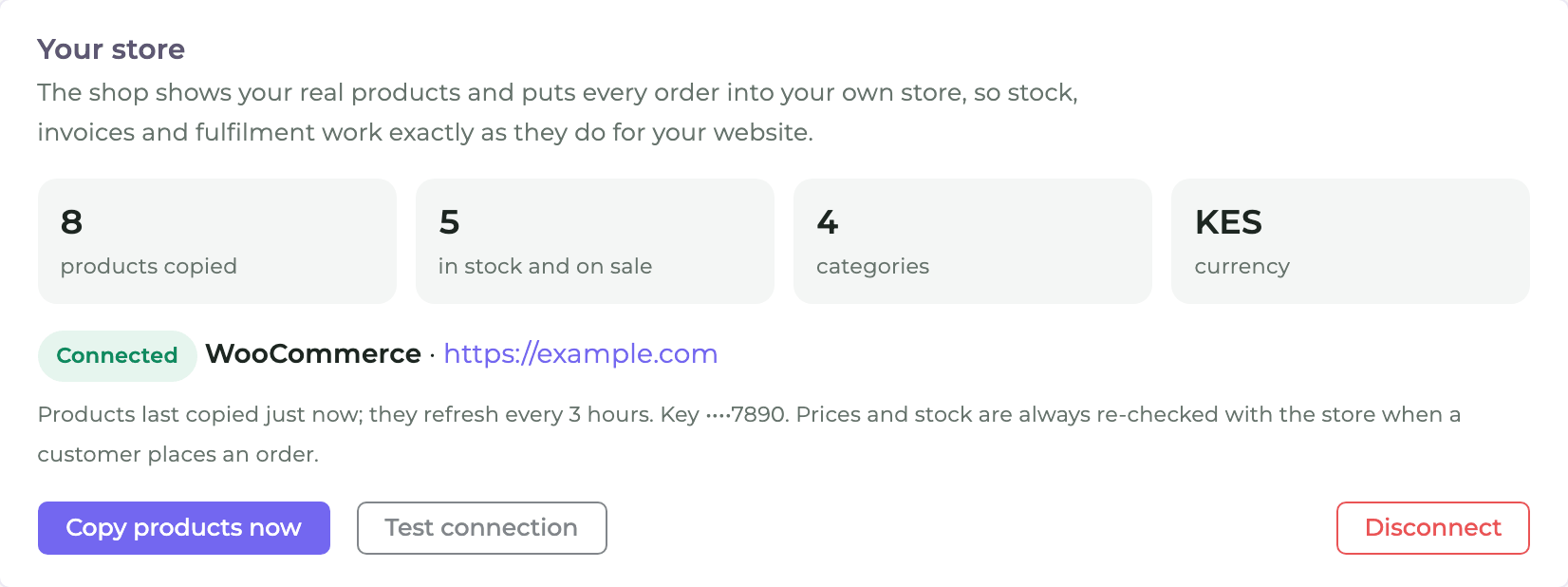
The copy is only for showing products quickly. When a customer presses Place order, the shop checks every price and the stock with your store again — so a price you changed, or the last item sold on your website, is never sold twice.
Step 2Choose what customers see first
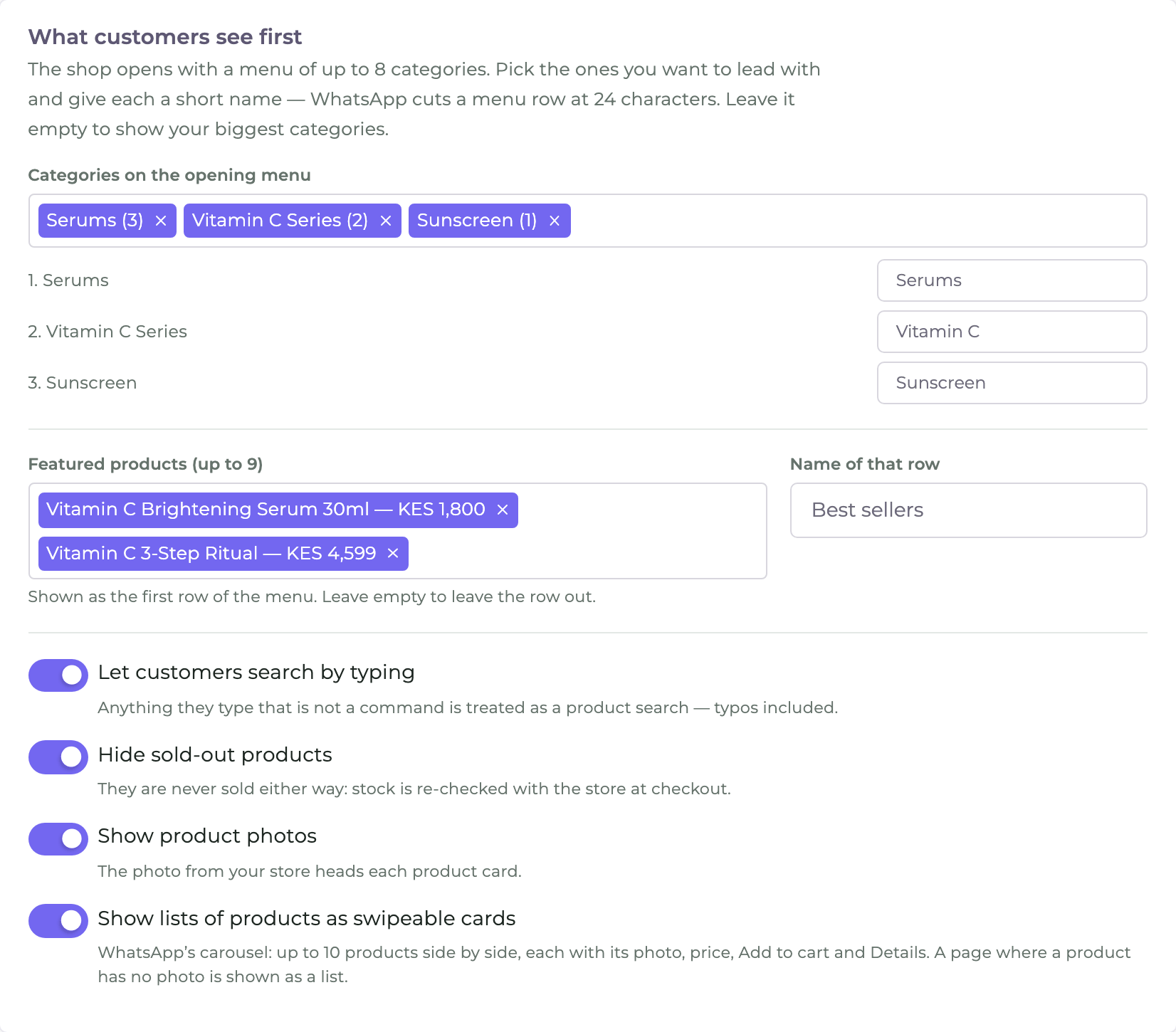
WhatsApp → Shop → CatalogueThe shop opens with a menu. Decide what is on it:
- Categories on the opening menu — up to 8, each with a short name of up to 24 characters (WhatsApp cuts longer menu rows). Leave it empty to show your biggest categories. Every other category is still one tap away, under More categories….
- Featured products — up to 9, shown as the first row of the menu under a name you choose, such as “Best sellers”.
- Let customers search by typing — anything they type that is not a command is a product search, and spelling mistakes are forgiven.
- Hide sold-out products and Show product photos.
- Show lists of products as swipeable cards — WhatsApp's carousel: up to 10 products side by side, each with its photo, price, Add to cart and Details. When a product on the page has no photo, that page is shown as a list instead.
Step 3Delivery
WhatsApp → Shop → DeliveryAdd the ways a customer can get their order. The quickest start is Import from your store: your WooCommerce delivery zones, rates and pick-up point are copied in for you to check, and nothing is saved until you press Save.
| Kind | Priced by | Good for |
|---|---|---|
| Price by area | A price per area you list — Westlands KES 300, Karen KES 500 — with the towns each one covers | A rider in town, or a parcel service to other towns |
| Price by distance | A base price plus a price per km from your shop, up to a limit. The customer shares a location pin and the price is worked out from it | Riders and courier apps |
| Fixed price | One price wherever they are | Countrywide courier |
| Pick-up | Free. Where they collect, and optionally its map location — then a pick-up order is followed by a pin they can open in their maps app | Your shop or a collection point |
For each way you can also set:
- Free for orders over an amount (0 means never free);
- Ask for the delivery address — the customer taps Send location or types it, and you can change what that question says;
- Allow cash on delivery — cash on delivery is only offered with the ways you allow it for.
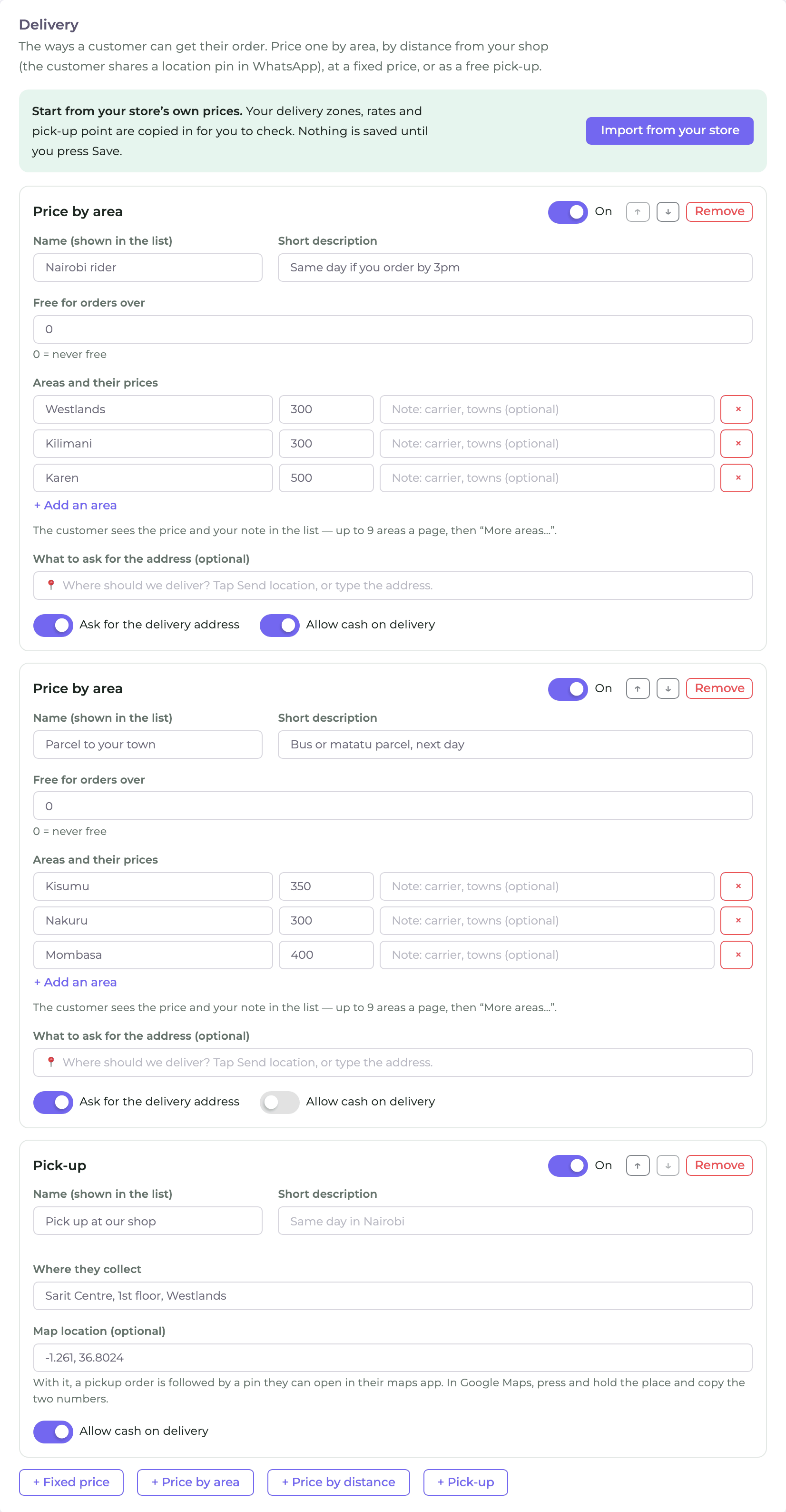
A customer who types “I am in Kisumu” at checkout is shown the ways that reach Kisumu, cheapest first, with pick-up last. It uses the towns each area covers, so list them — an imported zone brings its counties with it.
For a pick-up map location, open Google Maps, press and hold the place and copy the two numbers (for example -1.2833, 36.8219),
or paste a Google Maps link that shows them. Short maps.app.goo.gl links do not carry the numbers, so they are refused.
Step 4Payment
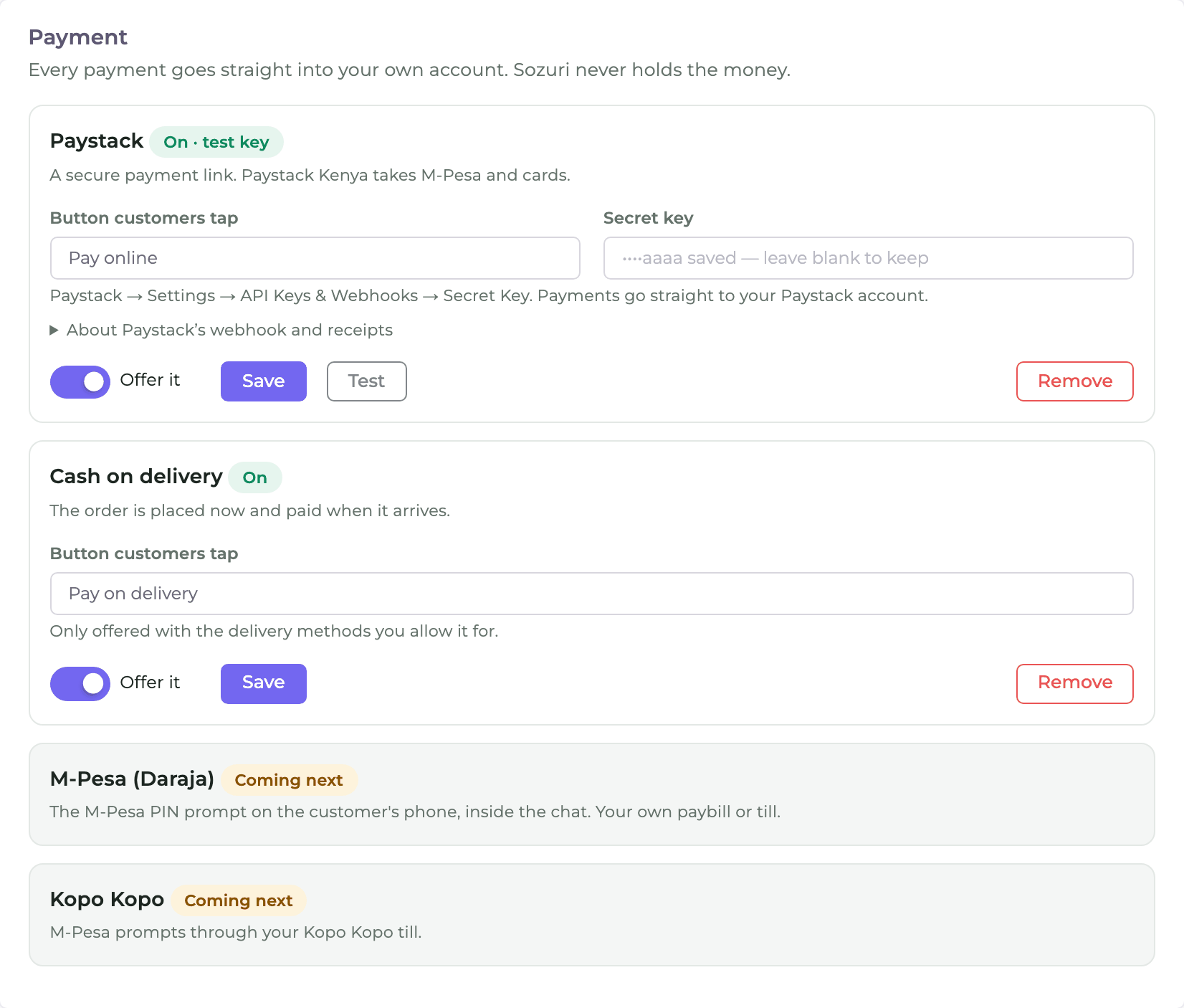
WhatsApp → Shop → PaymentEvery payment goes straight into your own account. Sozuri never holds the money.
- Paystack — the customer gets a Pay now link and pays by M-Pesa or card on Paystack's secure page.
Paste your secret key from Paystack → Settings → API Keys & Webhooks and press Test.
A test key (
sk_test_…) lets you try the whole journey without real money. - Cash on delivery — the order is placed straight away and paid when it arrives. You choose what its button says.
- M-Pesa (Daraja) and Kopo Kopo — the PIN prompt on the customer's phone, inside the chat. Coming next.
A Paystack account has one webhook address, and your website plugin probably uses it. That is fine: the shop confirms payments by checking with Paystack itself — when the customer returns from paying, and every minute after — so you do not need to change it.
Step 5Messages
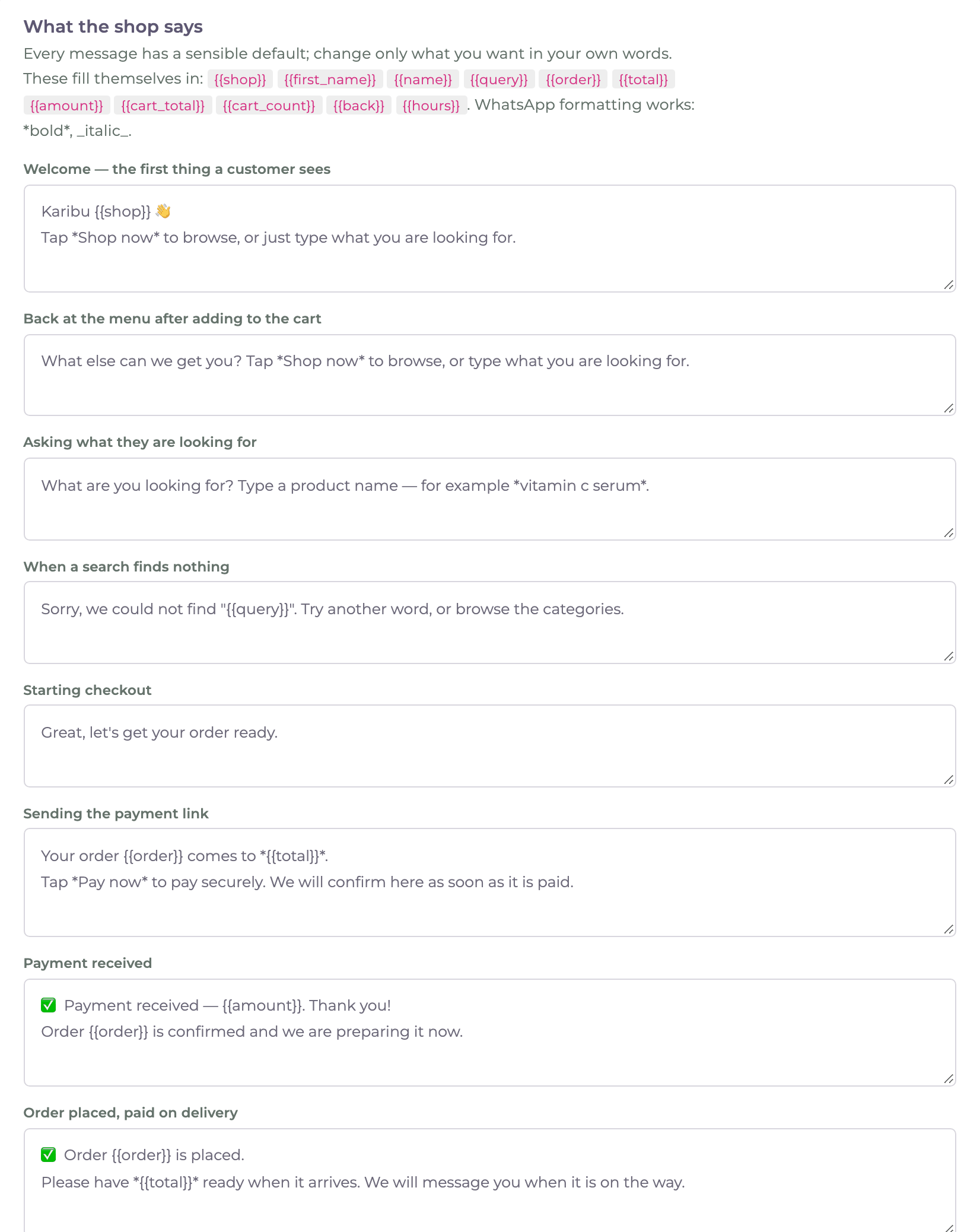
WhatsApp → Shop → MessagesEverything the shop says has a sensible default. Change only what you want in your own words — the welcome, the payment link message,
the thank-you after payment, what is said when they ask for a person, and the rest. WhatsApp formatting works: *bold*, _italic_.
These fill themselves in:
| Write | It becomes |
|---|---|
{{shop}} | Your shop's name |
{{first_name}}, {{name}} | The customer's first name, or full name |
{{order}}, {{total}}, {{amount}} | The order number, its total, and the amount paid |
{{cart_total}}, {{cart_count}} | What is in the cart |
{{query}} | What they searched for |
{{back}}, {{hours}} | When your team is back, and your team's hours |
Step 6The shopping assistant
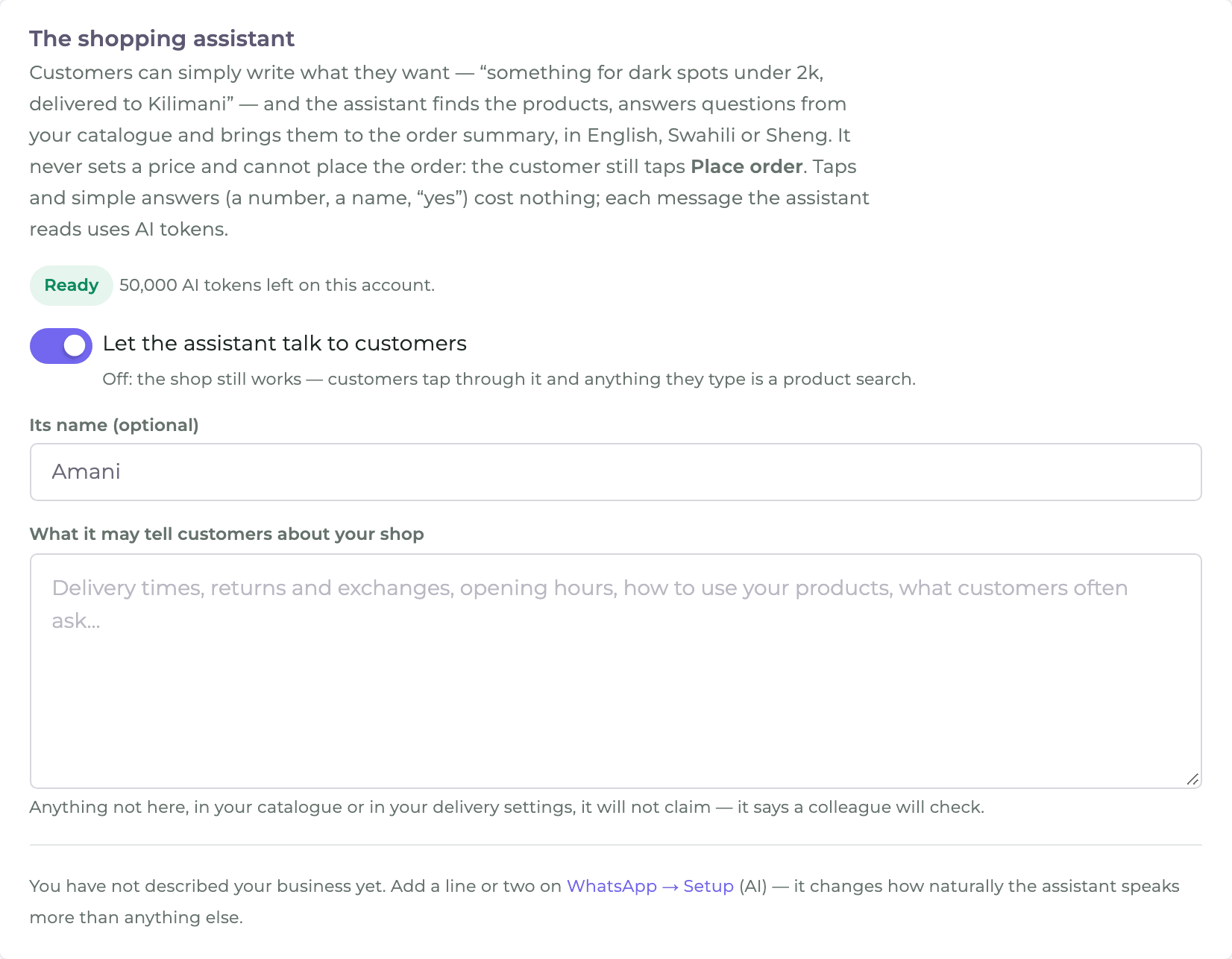
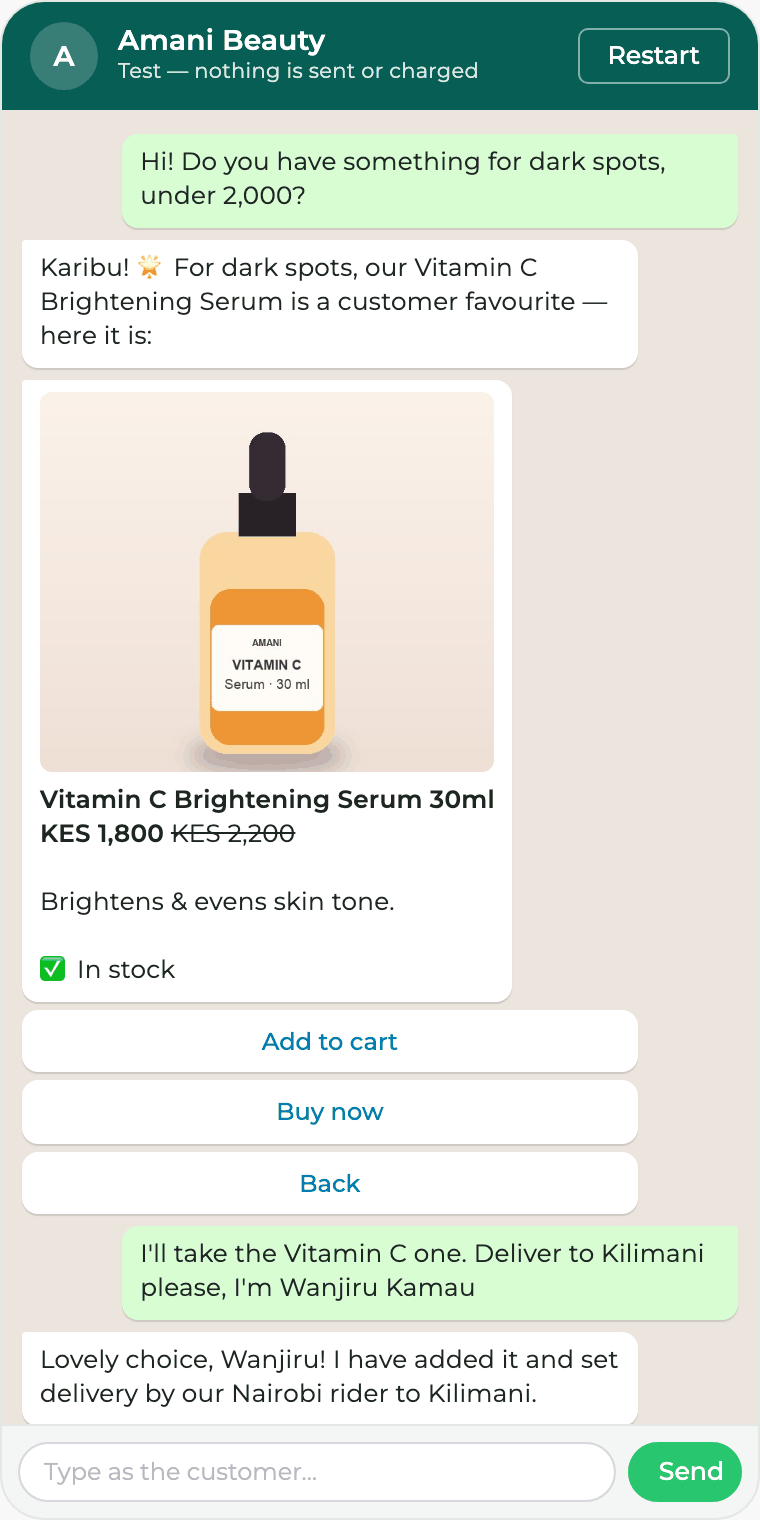
WhatsApp → Shop → AssistantWith the assistant on, customers can simply write what they want — “something for dark spots under 2,000, delivered to Kilimani” — in English, Swahili or Sheng. It finds the products, answers questions from your catalogue and delivery settings, and brings them to the order summary.
- It never sets a price and cannot place the order: the customer still taps Place order.
- Taps and simple answers (a number, a name, “yes”) cost nothing. Each message the assistant reads uses AI tokens from your account.
- Give it a name if you like, and tell it what it may say about your shop — delivery times, returns, opening hours, how to use your products. Anything you have not told it, it will not claim: it says a colleague will check.
- Switched off, the shop still works: customers tap through it, and anything they type is a product search.
Step 7Test it
The Test phone on the right of every step is your shop, answering as it will on WhatsApp. Type as a customer, tap the buttons, and press Restart to begin again. It always uses what you saved last.
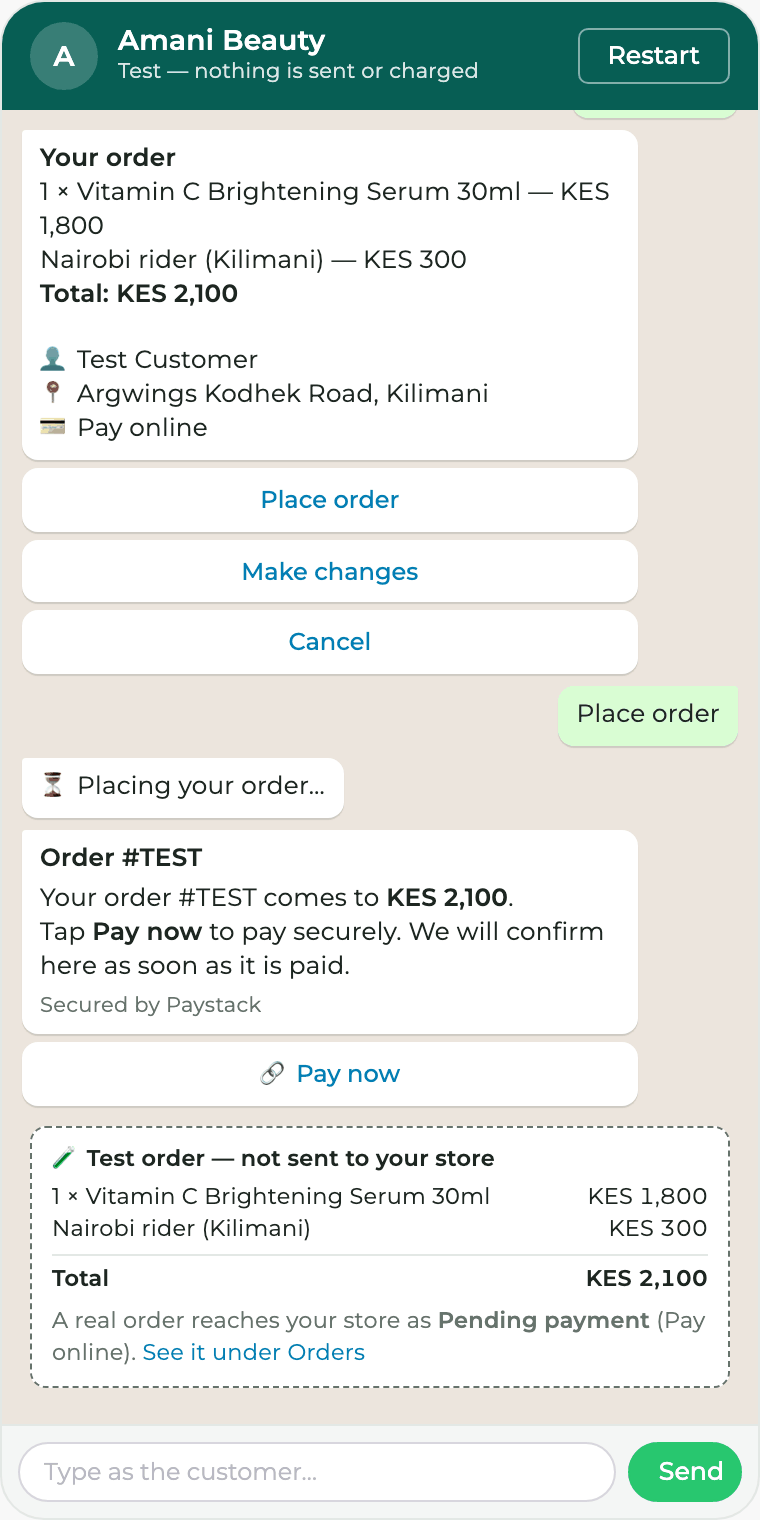
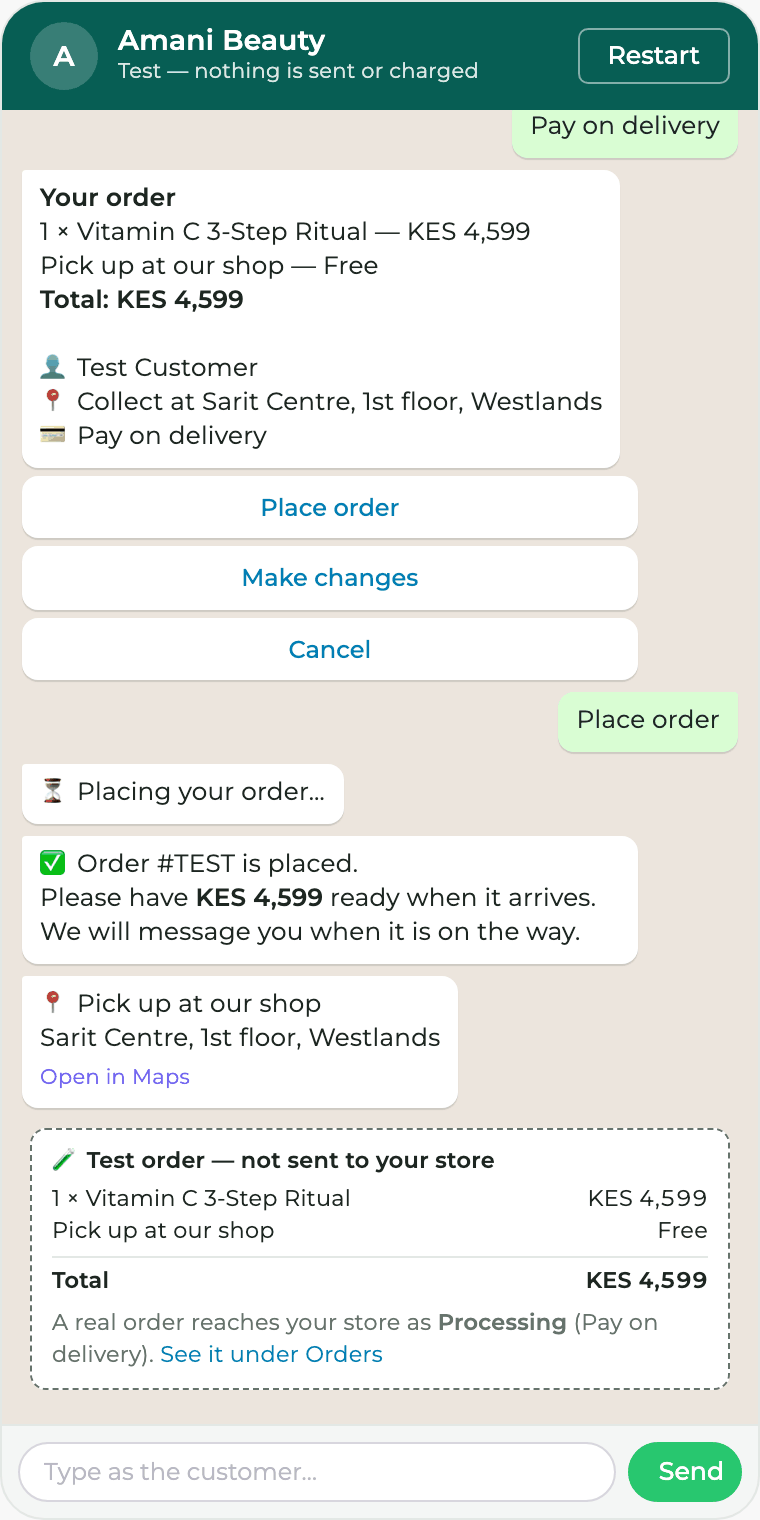
- Nothing is sent and nothing is charged. A test order is not sent to your store: the phone shows exactly what your store would have received, and it is listed under Orders as a test.
- Your real customers see the same messages, buttons and cards — try the whole journey once before you go live.
Step 8Go live
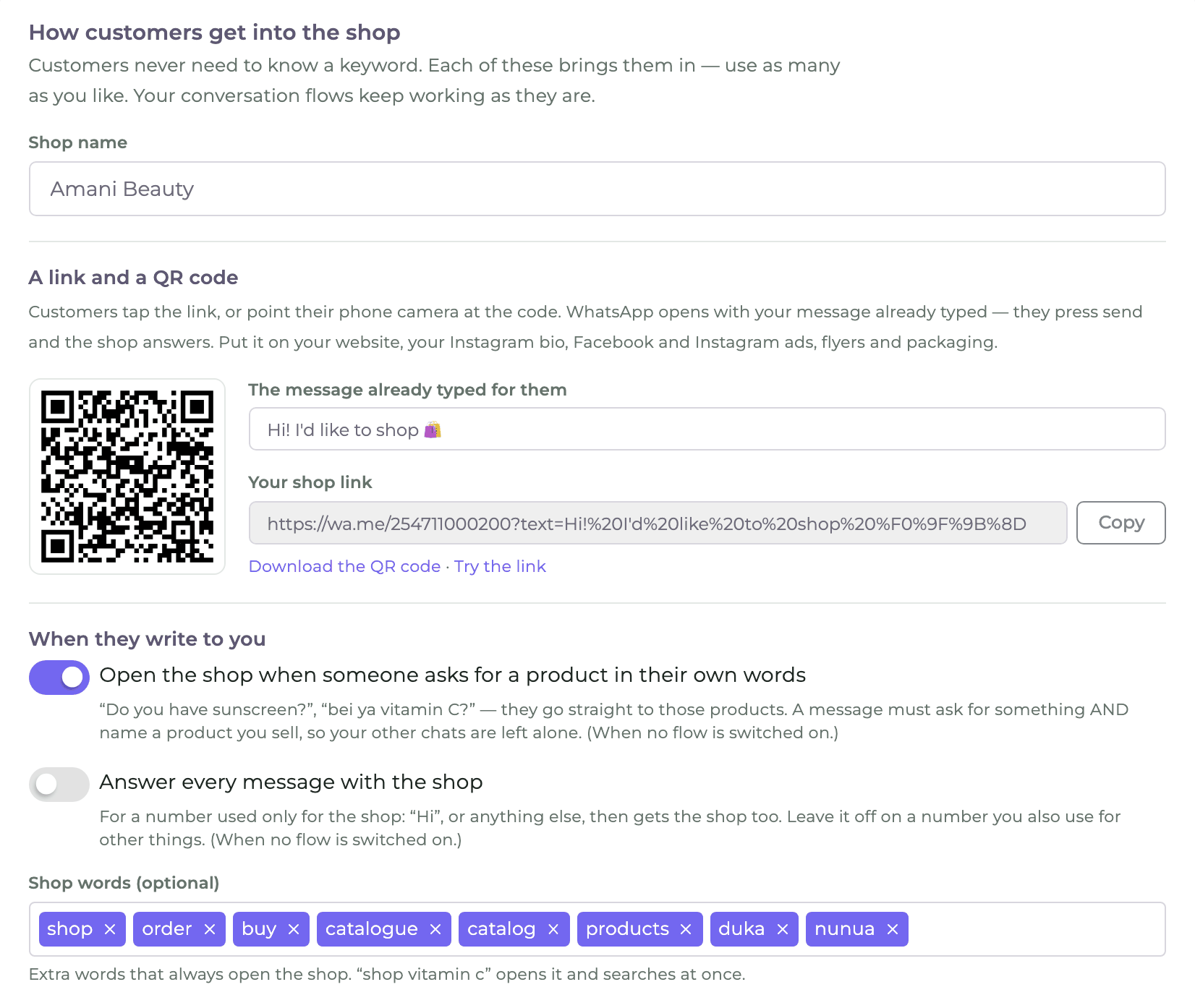
WhatsApp → Shop → Go liveSwitch on Shop is live at the top of the page. Then make sure customers can find it — they never need to know a keyword:
- A link and a QR code. Tapping the link (or scanning the code) opens WhatsApp with a message already typed; they press send and the shop answers. Put it on your website, Instagram bio, Facebook and Instagram ads, flyers and packaging.
- Plain requests. “Do you have sunscreen?” or “bei ya vitamin C?” opens the shop at those products. The message must ask for something and name a product you sell, so your other chats are left alone. (This works when no conversation flow is switched on.)
- Shop words — “shop”, “order”, “buy”, “duka”, “nunua” and any you add always open it.
- Answer every message with the shop — for a number used only for the shop.
- New-chat buttons — WhatsApp can show “Browse products / Find a product / Talk to us” in a brand-new chat. Everyone who opens a new chat sees them, so leave this off on a number you also use for other things.
- From a conversation flow — add the step Open the shop to a flow, for example as a “Shop” button in your welcome menu. It can start at the menu, a category, a product, a search, their orders or their cart.
Further down the same step:
- Words that leave the shop (“menu” hands them back to your flow) and words that ask for a person;
- Ask for an email for the receipt (customers can skip it), and ask for directions after a location pin — a gate number or a landmark for the rider;
- Show “typing…” while the shop answers — their message is marked read and WhatsApp shows “typing…” until the answer arrives;
- Ask “How many?” when a product is added — off by default: Add to cart puts one in at once, and customers change it with Change quantity;
- a minimum order, how long payment links stay open (unpaid orders are then cancelled in your store), how long carts are kept, and a note added to every order in your store.
What your customers see
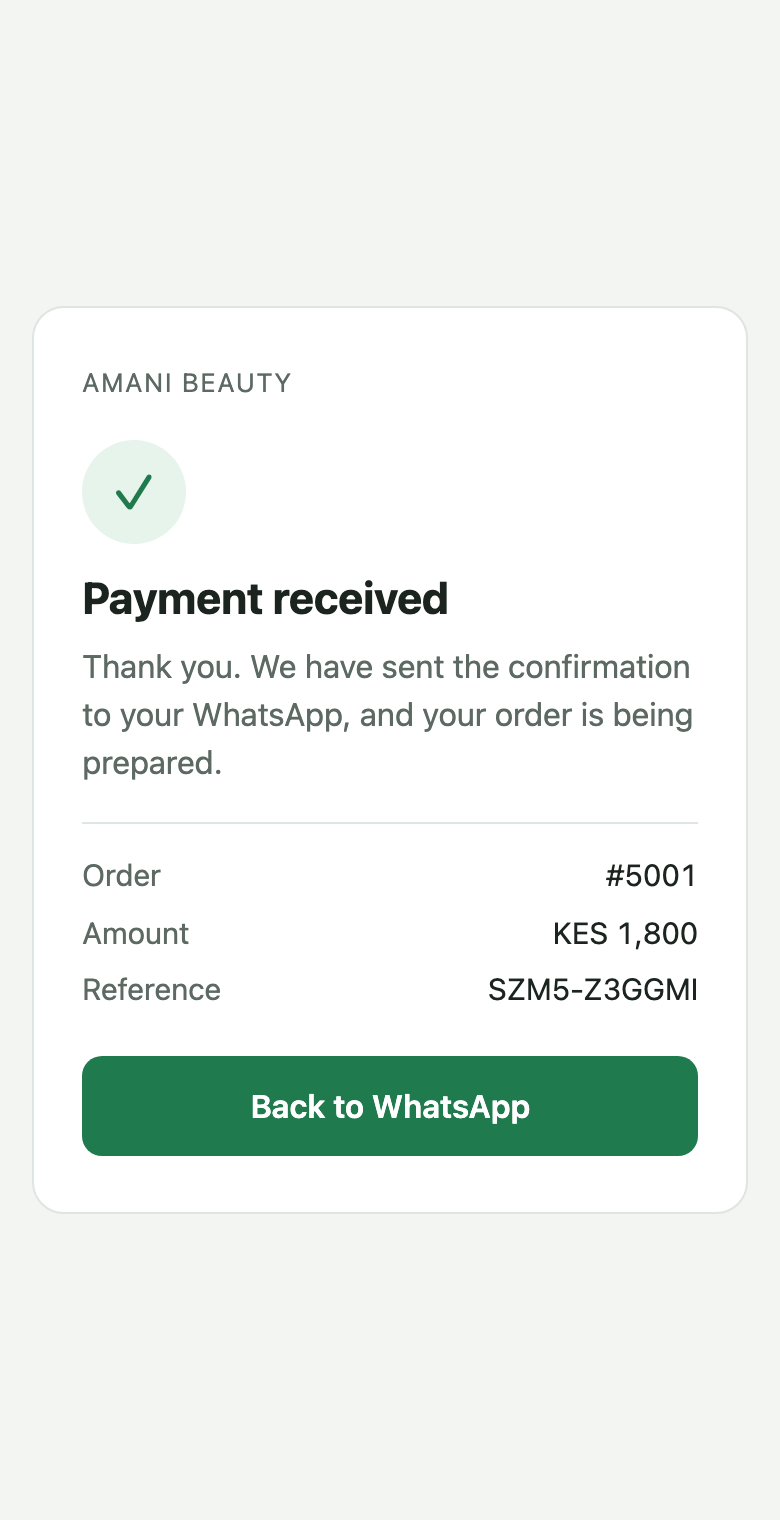
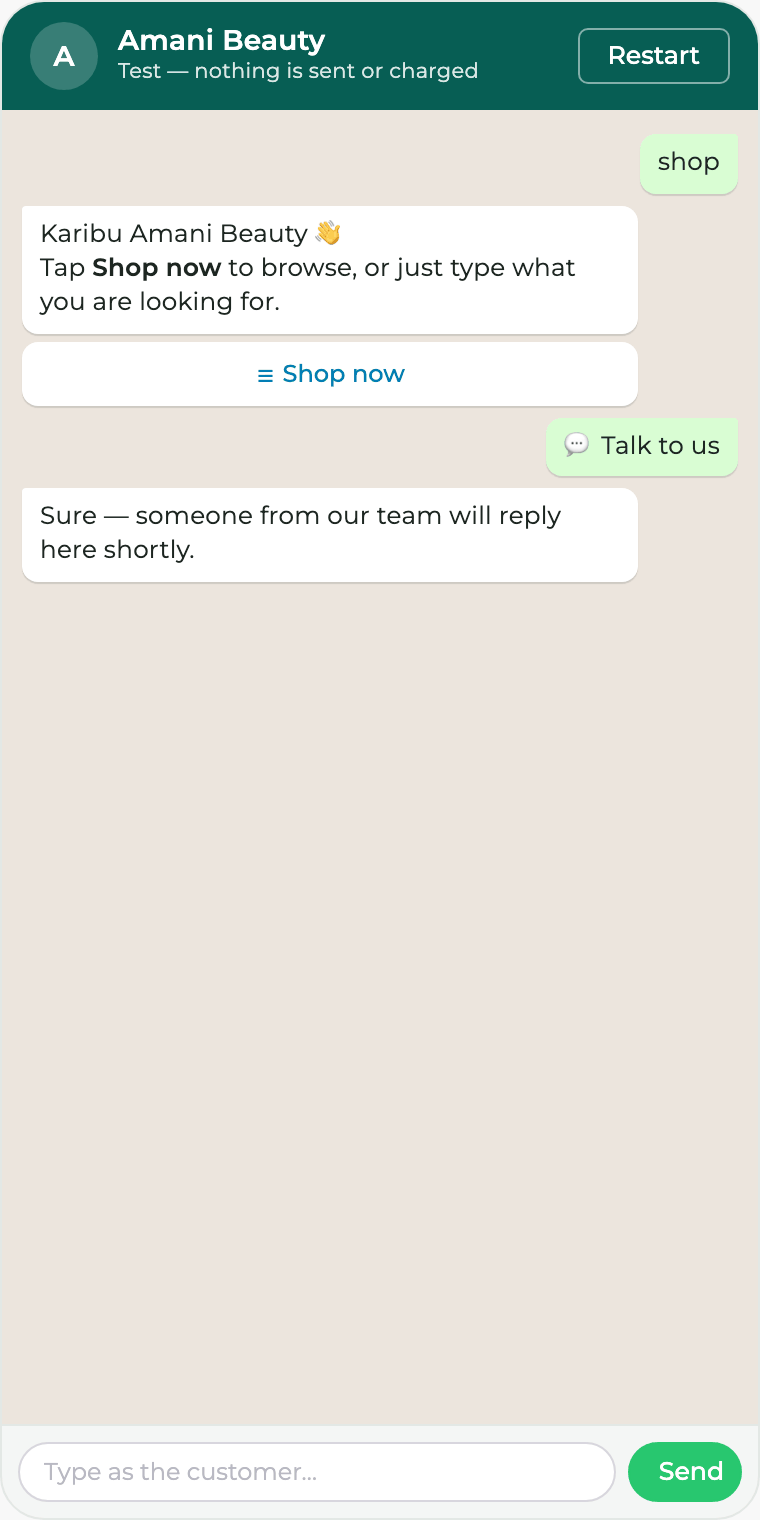
These are from the Test phone; on WhatsApp they look the same, in the customer's own theme.
Their orders
A customer who writes “my orders” or “where is my order?” sees their orders from the last 12 months — placed on WhatsApp or on your website with the same number — with the status, what they ordered, the total, and Pay now for any still unpaid. WhatsApp proves the number is theirs, so no code is needed.
When a customer asks for a person
A customer taps Talk to us or types a word such as “agent” or “human”. The shop then:
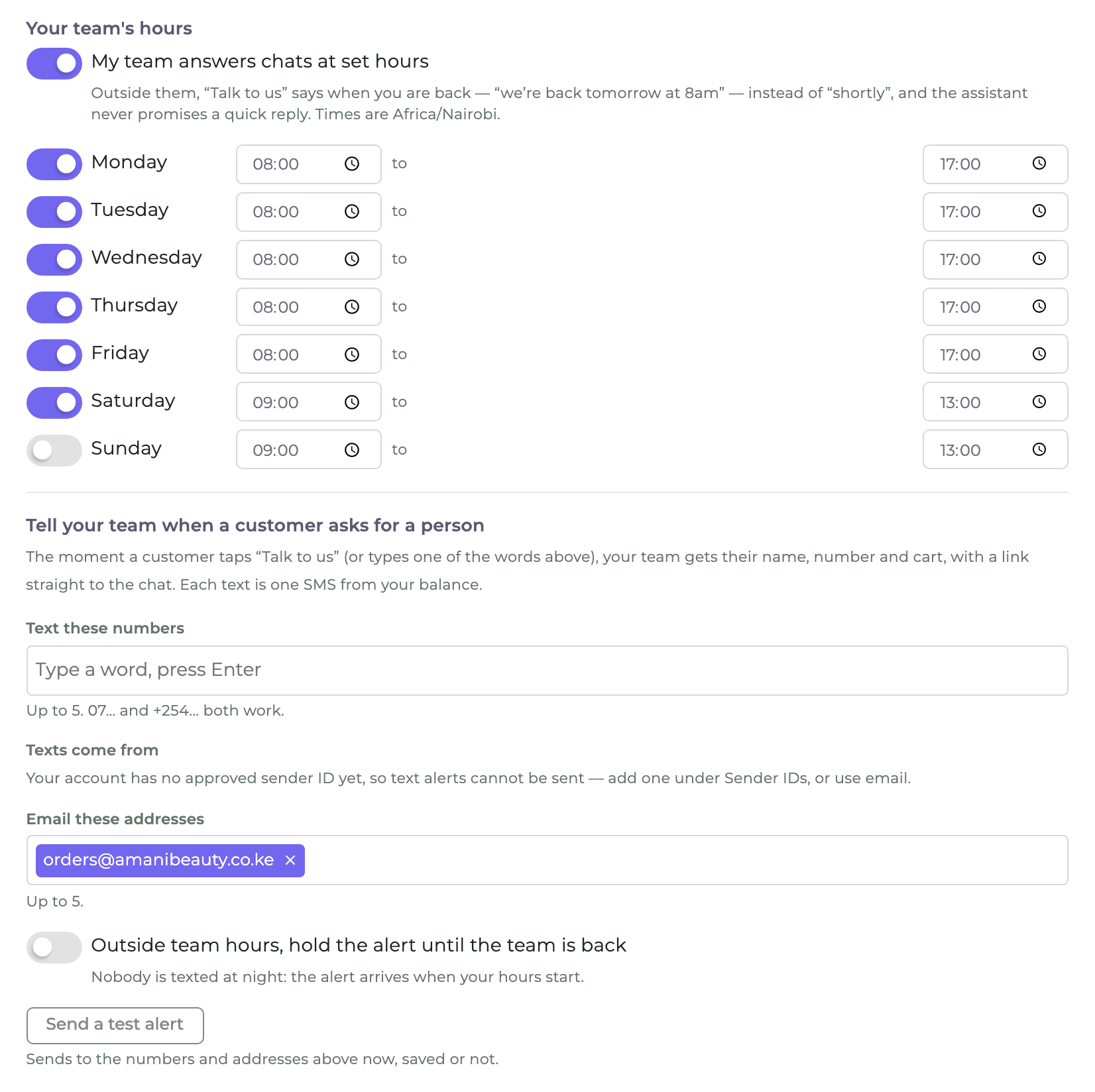
- puts the chat in the Team Inbox with a note, and tells your team — a text message and/or an email with their name, number, cart and a link straight to the chat;
- answers honestly about when you will reply. With team hours on, outside them it says “we're back tomorrow at 8am” instead of “shortly”;
- keeps helping until someone from your team replies — right away, or after a wait you choose. The moment a person replies in the Team Inbox, the shop and the assistant go quiet;
- optionally checks in once, after 10 minutes to 2 hours, if nobody has replied — offering to check them out if something is in their cart.
In the Team Inbox, the chat's side panel shows the shop assistant's state. Hand back to the assistant gives the conversation back to the shop when your team is done.
Text alerts are sent from one of your approved sender IDs and use SMS units from your balance; email alerts are free. Send a test alert tries them before you save.
Orders and payments
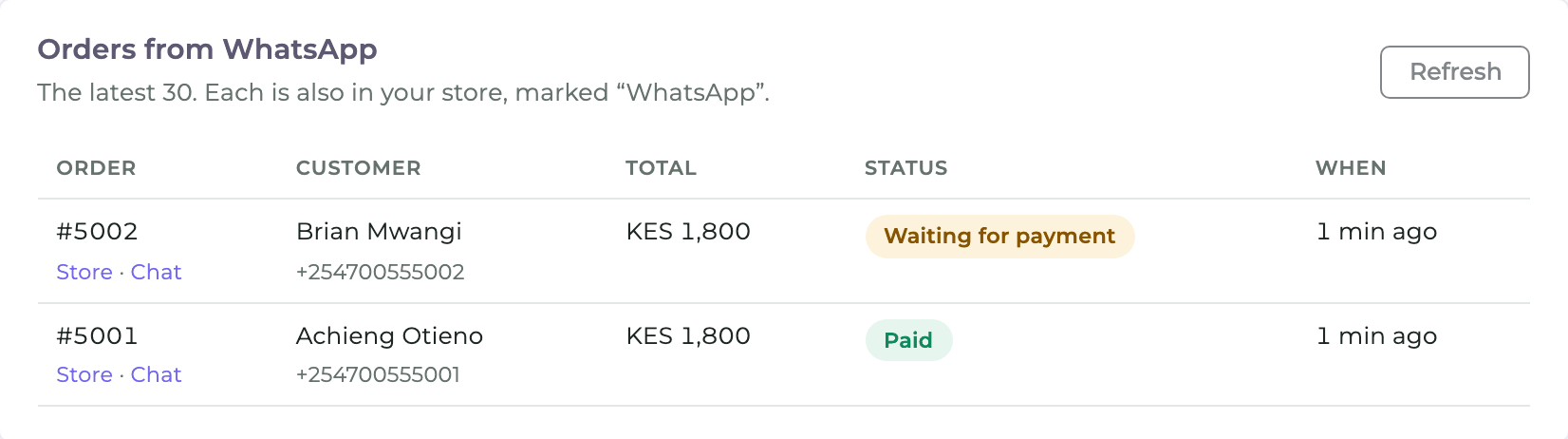
WhatsApp → Shop → OrdersEvery WhatsApp order goes into your store, marked as from WhatsApp, with the customer, the items, the delivery and its price, the address or location pin, the directions and your order note. Fulfil it exactly as you would a website order. The Orders step lists the latest 30 with their status and links to the order in your store and to the chat.
| When | In your store | On WhatsApp |
|---|---|---|
| Cash on delivery, placed | A new order, Processing | “Order #… is placed. Please have KES … ready.” |
| Pay online, placed | A new order, Pending payment | The Pay now link |
| Paid | Marked paid, Processing, with the Paystack reference | “Payment received — thank you!” |
| Not paid in time | Cancelled when the link expires | A note in the Team Inbox |
| Changed after placing | The new order replaces the unpaid one, which is cancelled | “Your earlier order is cancelled — this one replaces it.” |
- The amount charged is your store's own order total, so tax or rounding set in your store are respected.
- If the store cannot be reached when a payment arrives, the payment is still recorded, the customer is still told, and the store is updated automatically as soon as it answers.
- A payment for less than the order total is never treated as paid; your team gets a note to look at it.
- Each customer is saved in Contacts → All Contacts — the name they ordered under, and their email and delivery address as contact fields — so broadcasts can reach them later.
Connecting other tools
Send shop orders on to a spreadsheet, a CRM, an accounting system or Zapier:
- Webhooks —
order.placed,order.paidandorder.cancelledare sent to your own address the moment they happen, signed and retried. See Webhooks. - The orders list —
GET /ordersgives your shop orders newest first, with their items, delivery, payment and total. See Lists.
Both are part of the WhatsApp API on your account (For developers).
When something is wrong
| What you see | Why, and what to do |
|---|---|
| The live switch is greyed out | A step is not finished. The dots on the left show which: the store must be connected, and there must be at least one way to deliver and one way to pay. |
| A product is missing | It may be out of stock (with Hide sold-out products on), hidden in your store's catalogue, or not copied yet. Press Copy products now on the Store step. |
| Products show as a list, not cards | A product on that page has no photo, or its photo is not a JPEG or PNG. Add one in your store, then copy the products again. |
| The shop says it cannot reach the store | Press Test connection. If the key was removed or is Read only, connect again with a Read/Write key. |
| A customer paid but the order says waiting | Payments are confirmed with Paystack every minute. A payment that was started but not finished shows as abandoned and is not paid. Check the reference in your Paystack dashboard. |
| The shop does not answer someone | A person on your team replied in that chat in the last 12 hours, so the bots stay quiet. Use Hand back to the assistant in the Team Inbox. With a conversation flow on, plain requests go to the flow; use your shop link or a shop word. |
| A town is not recognised | Add it to the towns an area covers on the Delivery step. The customer can always pick from the list instead. |
Still stuck? Call 0722 117 850 or email [email protected], and say which step you are on. A screenshot of the Test phone is the fastest way to help.
Words used in this guide
- Carousel (cards)
- WhatsApp's swipeable row of product cards, each with a photo, the price and buttons.
- Test phone
- The rehearsal on the right of the Shop page. It answers like the real shop and sends, charges and stores nothing.
- Location pin
- A place shared from WhatsApp's 📎 → Location. The shop prices distance delivery from it and passes it to your rider.
- Pick-up pin
- Your collection point's place on the map, sent to customers who choose pick-up.
- Shop link
- A wa.me link that opens a chat with your number and a message already typed.
- AI tokens
- What the shopping assistant uses each time it reads a message. Buy more under Top up.
- Team Inbox
- Where your team reads and answers every WhatsApp chat — see the Team Inbox.